Friday, December 18, 2015

Python Tkinter: ttk.LabelFrame


#for Python 2
#import Tkinter as tk
#import ttk
#for Python 3
import tkinter as tk
from tkinter import ttk

import platform

def quit():
    global tkTop
    tkTop.destroy()

tkTop = tk.Tk()
tkTop.geometry('500x400')

tkLabelTop = tk.Label(tkTop, text=" http://hello-python.blogspot.com ")
tkLabelTop.pack()

strVersion = "running Python version " + platform.python_version()
tkLabelVersion = tk.Label(tkTop, text=strVersion)
tkLabelVersion.pack()
strPlatform = "Platform: " + platform.platform()
tkLabelPlatform = tk.Label(tkTop, text=strPlatform)
tkLabelPlatform.pack()

tkButtonQuit = tk.Button(
    tkTop,
    text="Quit",
    command=quit)
tkButtonQuit.pack()

lf1 = ttk.LabelFrame(tkTop, text="LabelFrame 1")
lf1.pack(fill="x", expand="yes")

def rbCallback():
    varLabel.set("Radiobutton clicked: " + str(rbVar.get()))

rbVar = tk.IntVar()

rb1 = tk.Radiobutton(
    lf1,
    text="One",
    variable=rbVar,
    value=1,
    command=rbCallback)
rb1.pack(anchor=tk.W)

rb2 = tk.Radiobutton(
    lf1,
    text="Two",
    variable=rbVar,
    value=2,
    command=rbCallback)
rb2.pack(anchor=tk.W)

rb3 = tk.Radiobutton(
    lf1,
    text="Three",
    variable=rbVar,
    value=3,
    command=rbCallback)
rb3.pack(anchor=tk.W)

varLabel = tk.StringVar()
tkLabel = tk.Label(lf1, textvariable=varLabel)
tkLabel.pack()

lf2 = ttk.LabelFrame(tkTop, text="LabelFrame 2")
lf2.pack(fill="both", expand="yes")

def cb1Callback():
    varLabel2.set("Checkbutton 1 clicked: " + str(cb1Var.get()))

cb1Var = tk.BooleanVar()
cb1 = tk.Checkbutton(
    lf2,
    text="Checkbutton 1",
    width = 50,
    background='#B0B0B0',
    anchor=tk.W,
    variable=cb1Var,
    command=cb1Callback)
cb1.pack()

def cb2Callback():
    varLabel2.set("Checkbutton 2 clicked: " + cb2Var.get())

cb2Var = tk.StringVar()
cb2 = tk.Checkbutton(
    lf2,
    text="Checkbutton 2 - ON/OFF",
    width = 50,
    background='#C0C0C0',
    anchor=tk.W,
    variable=cb2Var,
    onvalue="ON",
    offvalue="OFF",
    command=cb2Callback)
cb2.pack()

varLabel2 = tk.StringVar()
tkLabel2 = tk.Label(lf2, textvariable=varLabel2)
tkLabel2.pack()

tk.mainloop()

Python Tkinter: Radiobutton


Example to implement Radiobutton of Python Tkinter.
#for Python 2
#import Tkinter as tk
#for Python 3
import tkinter as tk

import platform

def quit():
    global tkTop
    tkTop.destroy()

tkTop = tk.Tk()
tkTop.geometry('500x300')

tkLabelTop = tk.Label(tkTop, text=" http://hello-python.blogspot.com ")
tkLabelTop.pack()

strVersion = "running Python version " + platform.python_version()
tkLabelVersion = tk.Label(tkTop, text=strVersion)
tkLabelVersion.pack()
strPlatform = "Platform: " + platform.platform()
tkLabelPlatform = tk.Label(tkTop, text=strPlatform)
tkLabelPlatform.pack()

tkButtonQuit = tk.Button(
    tkTop,
    text="Quit",
    command=quit)
tkButtonQuit.pack()

def rbCallback():
    varLabel.set("Radiobutton clicked: " + str(rbVar.get()))

rbVar = tk.IntVar()

rb1 = tk.Radiobutton(
    tkTop,
    text="One",
    variable=rbVar,
    value=1,
    command=rbCallback)
rb1.pack(anchor=tk.W)

rb2 = tk.Radiobutton(
    tkTop,
    text="Two",
    variable=rbVar,
    value=2,
    command=rbCallback)
rb2.pack(anchor=tk.W)

rb3 = tk.Radiobutton(
    tkTop,
    text="Three",
    variable=rbVar,
    value=3,
    command=rbCallback)
rb3.pack(anchor=tk.W)

varLabel = tk.StringVar()
tkLabel = tk.Label(tkTop, textvariable=varLabel)
tkLabel.pack()

tk.mainloop()

Python Tkinter: Checkbutton


#for Python 2
#import Tkinter as tk
#for Python 3
import tkinter as tk

import platform

def quit():
    global tkTop
    tkTop.destroy()

tkTop = tk.Tk()
tkTop.geometry('500x300')

tkLabelTop = tk.Label(tkTop, text=" http://hello-python.blogspot.com ")
tkLabelTop.pack()

strVersion = "running Python version " + platform.python_version()
tkLabelVersion = tk.Label(tkTop, text=strVersion)
tkLabelVersion.pack()
strPlatform = "Platform: " + platform.platform()
tkLabelPlatform = tk.Label(tkTop, text=strPlatform)
tkLabelPlatform.pack()

tkButtonQuit = tk.Button(
    tkTop,
    text="Quit",
    command=quit)
tkButtonQuit.pack()

def cb1Callback():
    varLabel.set("Checkbutton 1 clicked: " + str(cb1Var.get()))

cb1Var = tk.BooleanVar()
cb1 = tk.Checkbutton(
    tkTop,
    text="Checkbutton 1",
    width = 50,
    background='#B0B0B0',
    anchor=tk.W,
    variable=cb1Var,
    command=cb1Callback)
cb1.pack()

def cb2Callback():
    varLabel.set("Checkbutton 2 clicked: " + cb2Var.get())

cb2Var = tk.StringVar()
cb2 = tk.Checkbutton(
    tkTop,
    text="Checkbutton 2 - ON/OFF",
    width = 50,
    background='#C0C0C0',
    anchor=tk.W,
    variable=cb2Var,
    onvalue="ON",
    offvalue="OFF",
    command=cb2Callback)
cb2.pack()

varLabel = tk.StringVar()
tkLabel = tk.Label(tkTop, textvariable=varLabel)
tkLabel.pack()

tk.mainloop()

Thursday, December 17, 2015

Python example: Implement Tab using ttk.Notebook


Python example to implement Tab using ttk.Notebook.
#for Python 2
import Tkinter as tk
import ttk
#for Python 3
#import tkinter as tk
#from tkinter import ttk

import platform

def quit():
    global tkTop
    tkTop.destroy()

tkTop = tk.Tk()
tkTop.geometry('500x300')

tkLabelTop = tk.Label(tkTop, text=" http://hello-python.blogspot.com ")
tkLabelTop.pack()

notebook = ttk.Notebook(tkTop)
frame1 = ttk.Frame(notebook)
frame2 = ttk.Frame(notebook)
notebook.add(frame1, text='Frame One')
notebook.add(frame2, text='Frame Two')
notebook.pack()

tkButtonQuit = tk.Button(
    tkTop,
    text="Quit",
    command=quit)
tkButtonQuit.pack()
 
tkDummyButton = tk.Button(
    frame1,
    text="Dummy Button")
tkDummyButton.pack()
  
tkLabel = tk.Label(frame1, text=" Hello Python!")
tkLabel.pack()

strVersion = "running Python version " + platform.python_version()
tkLabelVersion = tk.Label(frame2, text=strVersion)
tkLabelVersion.pack()
strPlatform = "Platform: " + platform.platform()
tkLabelPlatform = tk.Label(frame2, text=strPlatform)
tkLabelPlatform.pack()

tk.mainloop()


Wednesday, December 16, 2015

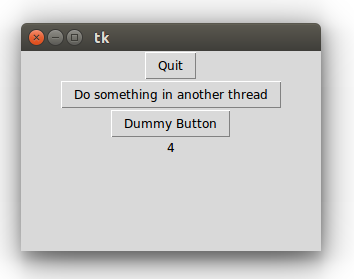
Python example of using Thread


It's a simple Python example to run code in background thread, to keep GUI responsive.

#tkinter for Python 3.x
#Tkinter for Python 2.x
 
import tkinter
from threading import Thread
import time
 
def quit():
    global tkTop
    tkTop.destroy()

def doSomething():
    print("Do something")
    for count in range(5):
        time.sleep(1)
        varLabel.set(str(count)) 

def runThread():
    varLabel.set("runThread() called")
    myThread = Thread(target=doSomething)
    myThread.start()
 
tkTop = tkinter.Tk()
tkTop.geometry('300x200')
 
tkButtonQuit = tkinter.Button(
    tkTop,
    text="Quit",
    command=quit)
tkButtonQuit.pack()

tkButtonRunThread = tkinter.Button(
    tkTop,
    text="Do something in another thread",
    command=runThread)
tkButtonRunThread.pack()

tkDummyButton = tkinter.Button(
    tkTop,
    text="Dummy Button")
tkDummyButton.pack()
 
varLabel = tkinter.StringVar()
tkLabel = tkinter.Label(textvariable=varLabel)
tkLabel.pack()
 
tkinter.mainloop()


Friday, March 27, 2015

Python plot sin, cos and tan, using pylab and numpy


import pylab as pl
import numpy as np

X = np.linspace(0, 2*np.pi, 360, endpoint=True)
Y = np.sin(X)
Y2 = np.cos(X)
pl.plot(X, Y)
pl.plot(X, Y2)

pl.show()

numpy and matplotlib are needed in this example.

Install for Python 2:
$ sudo apt-get install python-numpy
$ sudo apt-get install python-matplotlib

Install for Python 3:
$ sudo apt-get install python3-numpy
$ sudo apt-get install python3-matplotlib

Wednesday, February 11, 2015

Python Tools for Visual Studio

Turn Visual Studio into a powerful Python development environment with Python Tools for Visual Studio.

Python Tools for Visual Studio - free, open-source extension adds all the functionality needed to develop and maintain Python applications in Visual Studio, and deploy to Windows or Linux servers, or to Microsoft Azure.

You can install Python Tools for Visual Studio 2.1 into these versions:

  • Visual Studio 2013
  • Visual Studio Community 2013
  • Visual Studio Express 2013 for Web or for Windows Desktop
  • Visual Studio 2012 and 2010

Know more: http://www.visualstudio.com/en-us/explore/python-vs.aspx

This video will help you get up and running with Python in Visual Studio. We will cover installation of PTVS, a Python interpreter, and creating and deploying a project to Azure Websites.

Saturday, January 31, 2015

Virtualenv, create isolated Python environments with

virtualenv is a tool to create isolated Python environments.

The basic problem being addressed is one of dependencies and versions, and indirectly permissions. Imagine you have an application that needs version 1 of LibFoo, but another application requires version 2. How can you use both these applications? If you install everything into /usr/lib/python2.7/site-packages (or whatever your platform’s standard location is), it’s easy to end up in a situation where you unintentionally upgrade an application that shouldn’t be upgraded.

Or more generally, what if you want to install an application and leave it be? If an application works, any change in its libraries or the versions of those libraries can break the application.

Also, what if you can’t install packages into the global site-packages directory? For instance, on a shared host.

In all these cases, virtualenv can help you. It creates an environment that has its own installation directories, that doesn’t share libraries with other virtualenv environments (and optionally doesn’t access the globally installed libraries either).

To install globally with pip (if you have pip 1.3 or greater installed globally):

$ [sudo] pip install virtualenv


Visit: http://virtualenv.pypa.io/

Tuesday, June 17, 2014

Open browser in Python, with webbrowser


import webbrowser

webbrowser.open("https://docs.python.org/3/library/webbrowser.html")

dictionary vs tuple

One of the main differency between dictionary and tuple is 'tuple' indices must be integers and 'tuple' object does not support item assignment.


dictionary = {"day0": "sday", "day1": "Monday"}
print(dictionary["day0"])
dictionary["day0"] = "Sunday"
print(dictionary["day0"])

#tuple indices must be integers
tuple = ("sday", "Monday")
print(tuple[0])
#'tuple' object does not support item assignment
#tuple[0] = "Sunday"

Thursday, January 23, 2014

Python Data Visualization Cookbook

Python Data Visualization Cookbook - Over 60 recipes that will enable you to learn how to create attractive visualizations using Python's most popular libraries

Overview
  • Learn how to set up an optimal Python environment for data visualization
  • Understand the topics such as importing data for visualization and formatting data for visualization
  • Understand the underlying data and how to use the right visualizations
In Detail
Today, data visualization is a hot topic as a direct result of the vast amount of data created every second. Transforming that data into information is a complex task for data visualization professionals, who, at the same time, try to understand the data and objectively transfer that understanding to others. This book is a set of practical recipes that strive to help the reader get a firm grasp of the area of data visualization using Python and its popular visualization and data libraries.
Python Data Visualization Cookbook will progress the reader from the point of installing and setting up a Python environment for data manipulation and visualization all the way to 3D animations using Python libraries. Readers will benefit from over 60 precise and reproducible recipes that guide the reader towards a better understanding of data concepts and the building blocks for subsequent and sometimes more advanced concepts.
Python Data Visualization Cookbook starts by showing you how to set up matplotlib and the related libraries that are required for most parts of the book, before moving on to discuss some of the lesser-used diagrams and charts such as Gantt Charts or Sankey diagrams. During the book, we go from simple plots and charts to more advanced ones, thoroughly explaining why we used them and how not to use them. As we go through the book, we will also discuss 3D diagrams. We will peep into animations just to show you what it takes to go into that area. Maps are irreplaceable for displaying geo-spatial data, so we also show you how to build them. In the last chapter, we show you how to incorporate matplotlib into different environments, such as a writing system, LaTeX, or how to create Gantt charts using Python.
This book will help those who already know how to program in Python to explore a new field – one of data visualization. As this book is all about recipes that explain how to do something, code samples are abundant, and they are followed by visual diagrams and charts to help you understand the logic and compare your own results with what is explained in the book.
What you will learn from this book
  • Install and use iPython
  • Use Python's virtual environments
  • Install and customize NumPy and matplotlib
  • Draw common and advanced plots
  • Visualize data using maps
  • Create 3D animated data visualizations
  • Import data from various formats
  • Export data from various formats
Approach
This book is written in a Cookbook style targeted towards an advanced audience. It covers the advanced topics of data visualization in Python.

Sunday, January 5, 2014

Print list of int, and String

This example print list of int, and String:
Print list of int, and String

#generate random 5 number
import random

list=[]     #init a empty list

for x in range(0, 5):
    random_number = random.randint(0, 10)
    print(random_number)
    list.append(random_number)  #append random number to list
    
#print all elements
print('[%s]' % ', '.join(map(str, list)))

strList = ['abc', 'def', 'ghi', 'jkl']
#join strings in list, with ', ' in between each element.
print(', '.join(strList));

Friday, January 3, 2014

Generate random number in Python

To generate random number in Python Shell:
>>> import random
>>> random.randint(0, 10)

generate random number in Python Shell
Generate random number in Python Shell

Code example:
#generate random 5 number
import random
for x in range(0, 5):
    random_number = random.randint(0, 10)
    print(random_number)

Python code to generate random number

Output
Output

Wednesday, September 11, 2013

Download and install spyder on Ubuntu

Download latest spyder-2.2.4.zip from https://code.google.com/p/spyderlib/downloads/list. Unzip the file, change to the unzipped directory, run the command:

$sudo python setup.py install

To run installed spyder, you need install python-qt4 in your system.

Run installed Spyder with the command in Terminal

$spyder


Install python-qt4 on Ubuntu

Install python-qt4 on Ubuntu, use the command in Terminal

$sudo apt-get install python-qt4

Spyder, a Scientific PYthon Development EnviRonment

Spyder is a powerful interactive development environment for the Python language with advanced editing, interactive testing, debugging and introspection features.

Spyder lets you easily work with the best tools of the Python scientific stack in a simple yet powerful environment. Run on all platforms, include Windows, Mac OSX and on Linux.

Spyder

Tuesday, September 3, 2013

NumPy Beginner's Guide - Second Edition

NumPy Beginner's Guide - Second Edition


An action packed guide using real world examples of the easy to use, high performance, free open source NumPy mathematical library
Overview
  • Perform high performance calculations with clean and efficient NumPy code
  • Analyze large data sets with statistical functions
  • Execute complex linear algebra and mathematical computations
In Detail
NumPy is an extension to, and the fundamental package for scientific computing with Python. In today's world of science and technology, it is all about speed and flexibility. When it comes to scientific computing, NumPy is on the top of the list.
NumPy Beginner's Guide will teach you about NumPy, a leading scientific computing library. NumPy replaces a lot of the functionality of Matlab and Mathematica, but in contrast to those products, is free and open source.
Write readable, efficient, and fast code, which is as close to the language of mathematics as is currently possible with the cutting edge open source NumPy software library. Learn all the ins and outs of NumPy that requires you to know basic Python only. Save thousands of dollars on expensive software, while keeping all the flexibility and power of your favourite programming language.You will learn about installing and using NumPy and related concepts. At the end of the book we will explore some related scientific computing projects. This book will give you a solid foundation in NumPy arrays and universal functions. Through examples, you will also learn about plotting with Matplotlib and the related SciPy project. NumPy Beginner's Guide will help you be productive with NumPy and have you writing clean and fast code in no time at all.
What you will learn from this book
  • Install NumPy
  • NumPy arrays
  • Universal functions
  • NumPy matrices
  • NumPy modules
  • Plot with Matplotlib
  • Test NumPy code
  • Relation to SciPy
Approach
The book is written in beginner’s guide style with each aspect of NumPy demonstrated with real world examples and required screenshots.
Who this book is written for
If you are a programmer, scientist, or engineer who has basic Python knowledge and would like to be able to do numerical computations with Python, this book is for you. No prior knowledge of NumPy is required.

Friday, July 26, 2013

Read online for free: Python Cookbook, Third Edition

If you need help writing programs in Python 3, or want to update older Python 2 code, this book is just the ticket. Packed with practical recipes written and tested with Python 3.3, this unique cookbook is for experienced Python programmers who want to focus on modern tools and idioms.

Inside, you’ll find complete recipes for more than a dozen topics, covering the core Python language as well as tasks common to a wide variety of application domains. Each recipe contains code samples you can use in your projects right away, along with a discussion about how and why the solution works.

Read online:
http://chimera.labs.oreilly.com/books/1230000000393

Thursday, July 25, 2013

Python language Video Tutorials

Python language Video Tutorials

If you're interested in learning how to write computer programs, you'll love this training.

It's perfect for desktop/web application developers who need an intro course in Python, for systems administrators who are interested in using Python for automation and for anyone interested in a programming career.


Tuesday, July 23, 2013

Python for Everyone


Cay Horstmann's Python for Everyone provides readers with step-by-step guidance, a feature that is immensely helpful for building confidence and providing an outline for the task at hand. “Problem Solving” sections stress the importance of design and planning while “How To” guides help students with common programming tasks. Photographs present visual analogies that explain the nature and behavior of computer concepts. Step-by-step figures illustrate complex program operations, while syntax boxes and example tables present a variety of typical and special cases in a compact format. This book contains a substantial number of self-check questions at the end of each section. “Practice It” pointers suggest exercises to try after each section. Python for Everyone presents the essentials in digestible chunks, with separate notes that go deeper into good practices or language features when the reader is ready for the additional information. You will not find artificial over-simplifications that give an illusion of knowledge.